Authenticator
App

SafePass is a free authenticator app for iPhone, iPad, Apple Watch and Mac. It generates the 6-digit two-factor authentication (2FA) codes your accounts ask for, keeps them behind Face ID, and backs them up with encryption so a lost or new phone never locks you out.

* Available on iPhone, iPad, Apple Watch and Mac.

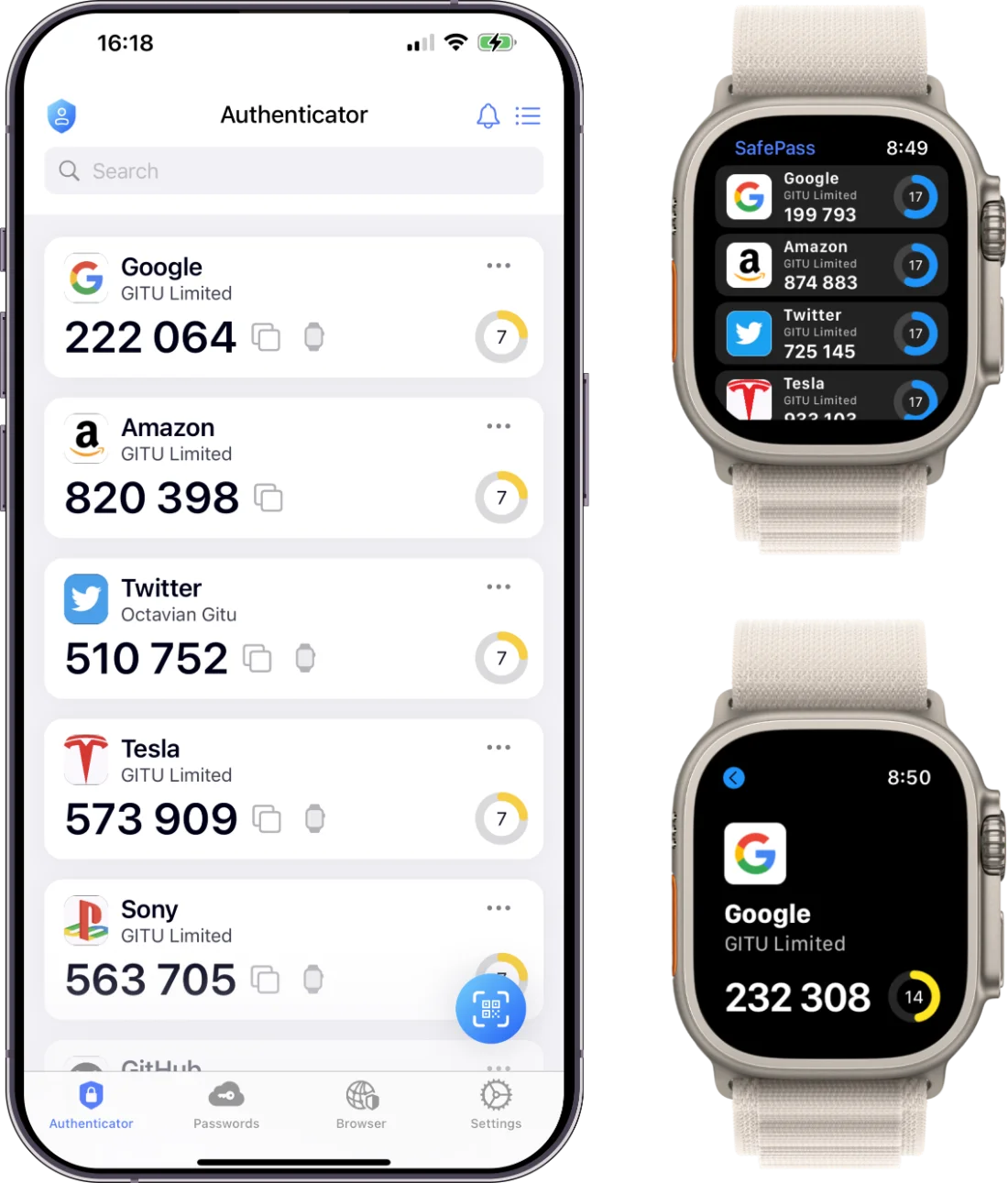
SafePass authenticator app 2FA codes on iPhone and Apple Watch

What is an authenticator app?

An authenticator app adds a second step to signing in. After your password, the website asks for a 6-digit code that the app creates on your phone. The code changes every 30 seconds and is generated on your device (TOTP, the time-based one-time password standard), so it can’t be intercepted the way a text message can. Even if someone steals your password, they can’t sign in without your phone.

Most services that offer two-factor authentication support authenticator apps, including government sites, banks and brokerages, crypto exchanges, email, social media and gaming accounts.

Privacy Policy | Terms & Conditions

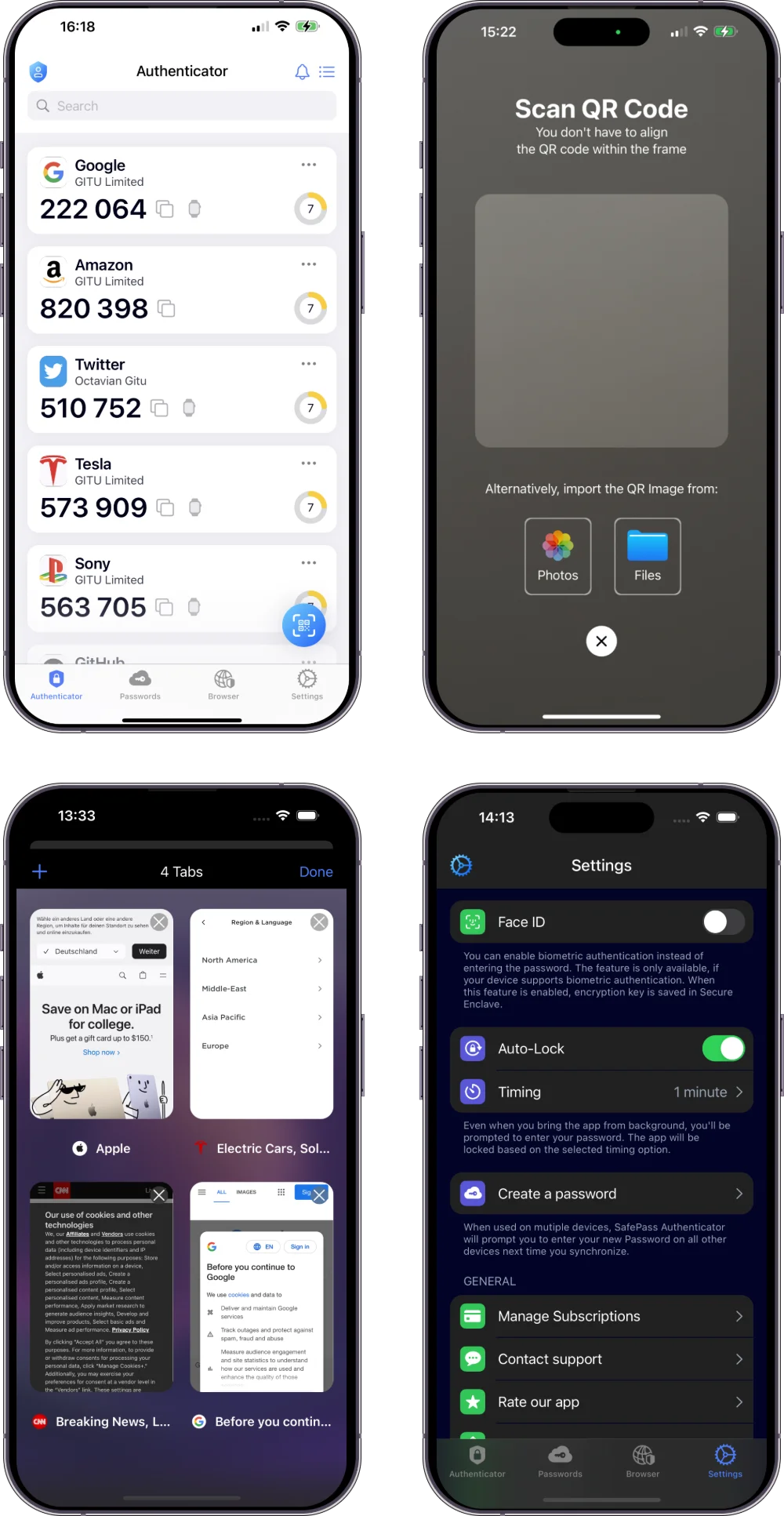
SafePass authenticator app code list on iPhone

Why choose SafePass Authenticator

Encrypted backup icon

Encrypted backup & iCloud sync

Your accounts, recovery codes, passwords and notes are backed up with encryption and can sync with iCloud. (Premium)

Encrypted backup icon

Move to a new iPhone in seconds

Transfer everything to your new iPhone with a QR code instead of setting up every account again. (Premium)

Face ID security icon

Face ID & Touch ID protection

Your 2FA codes stay locked until you unlock them with Face ID, Touch ID or your PIN.

Face ID security icon

Password manager & AutoFill

Save passwords next to your 2FA codes and fill them in Safari and apps. (Premium)

Password health icon

Password Health

Find weak, reused and breached passwords, then fix them with a guided update. (Premium)

Authenticator app features icon

Apple Watch & “Code not working?” help

See your codes on your wrist, and get step-by-step fixes for common 2FA problems like a wrong time or a replaced setup key.

How to set up SafePass in 3 steps

  1. Turn on two-factor authentication in the security settings of the account you want to protect, and choose “authentication app” or “authenticator app” as the method.
  2. Scan the QR code the website shows with SafePass. The account appears in your list immediately.
  3. Enter the 6-digit code from SafePass on the website to finish. Save the recovery codes the site gives you – SafePass can store those too.

Privacy Policy | Terms & Conditions

* Available on iPhone, iPad, Apple Watch and Mac.

Works with the accounts you use

SafePass works with any service that supports authenticator apps, for example:

  • Government: Login.gov, my Social Security (through Login.gov or ID.me), IRS Online Account (through ID.me)
  • Money: Coinbase, Robinhood, Fidelity, Charles Schwab, Vanguard, PayPal
  • Everyday accounts: Google, Microsoft, Amazon, Instagram, Facebook, Discord, Steam, GitHub, Dropbox

SafePass is an independent app and is not affiliated with Login.gov, the Social Security Administration, the IRS, ID.me or any other service named on this page.

How to choose an authenticator app

Before you add dozens of accounts, check:

  • Backup: If your phone is lost, can you restore your codes? Without a backup you have to recover every account one by one.
  • Moving phones: Can you transfer your accounts to a new device easily?
  • Protection: Are codes locked behind Face ID, Touch ID or a passcode?
  • Devices: Do you want codes on Apple Watch, iPad or Mac too?
  • Extras: Do you also want a password manager and AutoFill in the same app?

Switching phones without getting locked out

The most common reason people lose access to their accounts is a new or lost phone. With SafePass you can keep an encrypted backup, sync it with iCloud, and move all accounts to a new iPhone with a QR code. Keep the recovery codes each website gives you – SafePass can store them alongside your accounts.

Pricing

SafePass is free to download. SafePass Premium – with encrypted backup and sync, iPhone transfer, password manager, AutoFill and Password Health – is available as a subscription with a free trial. Prices are shown in the App Store before you subscribe.

Frequently asked questions

Is SafePass free?

Yes, SafePass is free to download and generates 2FA codes. Premium features such as encrypted backup, transfer, AutoFill and Password Health are part of the subscription.

Is an authenticator app safer than text message codes?

Yes. Codes are created on your device and are not sent over the phone network, so they can’t be intercepted or redirected through SIM swapping.

What happens if I lose my phone?

If you use the encrypted backup with iCloud sync, you can restore your accounts on your new iPhone. Without a backup, you’ll need each website’s recovery codes.

Can I use SafePass for Login.gov?

Yes. Choose “Authentication application” when you set up Login.gov and scan the QR code with SafePass.

Does SafePass work on Apple Watch?

Yes. Your codes can appear on Apple Watch so you can sign in without taking out your phone.

Why is my 2FA code not working?

Usually your phone’s time is off, you’re using the code from a different account, or the website replaced your setup key. SafePass includes a “Code not working?” guide that walks you through each fix.

Contact us

For any issue that you may encounter, any idea, any feedback, please, contact us as we would love to hear from you. Drop us a quick message and we will get back to you in 1-2 business days.

© SafePass Authenticator App | iPhone, iPad, Apple Watch and Mac. 2026 GITU Limited.All rights reserved.